Quickstart
By the end of this guide you will have:
- Ingested a real CTI article (CISA advisory)
- Run the full agentic workflow (Platform detection → extraction → Sigma generation)
- Viewed extracted huntables and validated Sigma rules
- Confirmed the stack is healthy with pytest
Total time: ~5 minutes (plus initial Docker image build).
End-to-end run using Docker Compose and the built-in workflow. Commands use python3 explicitly and match the live stack (./start.sh, port 8001).
1) Prerequisites
- Docker and the Docker Compose plugin available on your PATH
python3for running tests,jqfor parsing JSON responses- Port
8001(web UI/API) free on the host .envconfigured via./setup.sh(add LLM keys if you want AI features)
2) Start the stack
git clone https://github.com/dfirtnt/Huntable-CTI-Studio.git
cd Huntable-CTI-Studio
./setup.sh --no-backups
./start.sh                                    # builds + launches docker-compose
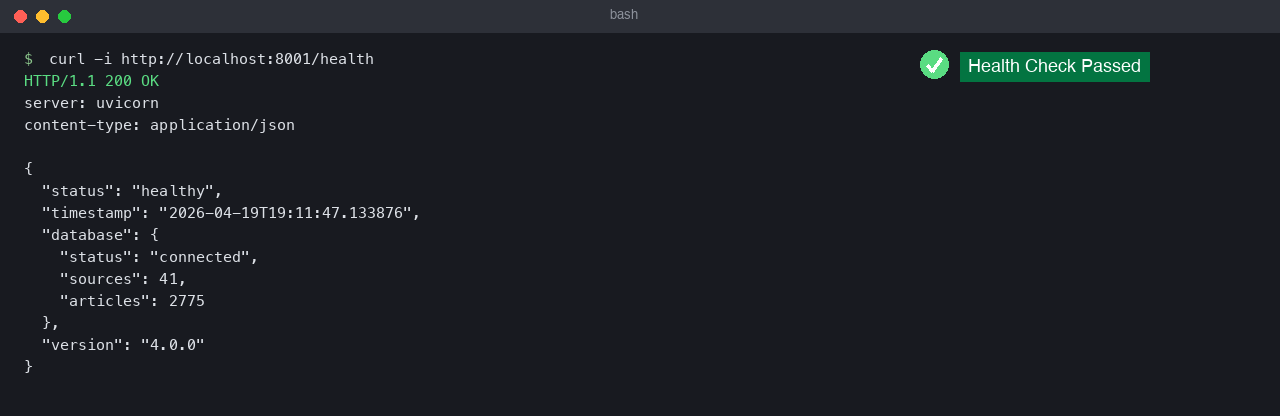 A
A 200 OK from /health confirms the web container is reachable and the database is connected.
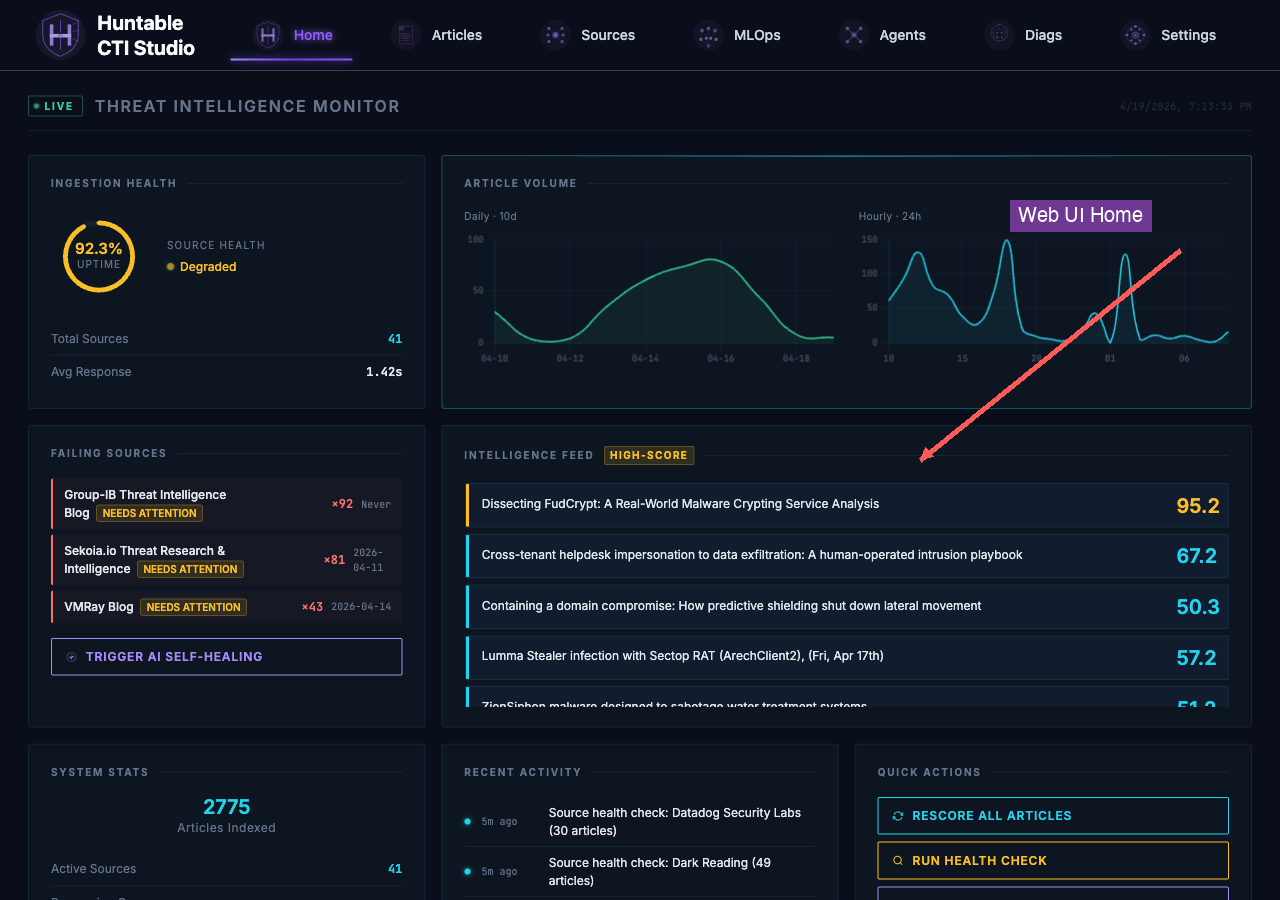 The dashboard at
 http://localhost:8001 is the entry point for browsing articles, sources, and agent activity.
3) Ingest a CTI article
Use the manual scrape endpoint to pull a real article into the database and capture its ID:
ARTICLE_ID=$(curl -s -X POST http://localhost:8001/api/scrape-url \
  -H 'Content-Type: application/json' \
  -d '{"url":"https://www.cisa.gov/news-events/cybersecurity-advisories/aa23-214a","force_scrape":true}' | jq -r '.article_id')
echo "Article ID: ${ARTICLE_ID}"
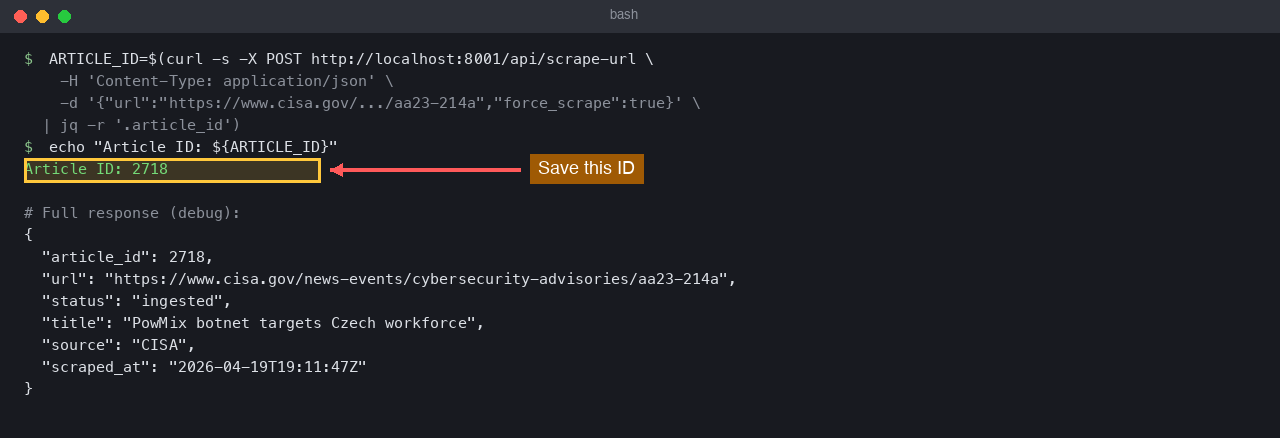 Capture the returned
 article_id; subsequent workflow calls reference it.
4) Run the agentic workflow
On a fresh install, make sure the workflow agents have a provider and model configured first; the fastest way is to load a quickstart preset (see First Workflow, step 0).
Trigger the full pipeline (Platform Detection → junk filter → ranking → Extract Agent → Sigma generation → similarity search). Platform Detection routes Windows-only extractors based on detected platform: Linux/macOS articles skip RegistryExtract, ServicesExtract, and ScheduledTasksExtract automatically:
TRIGGER=$(curl -s -X POST "http://localhost:8001/api/workflow/articles/${ARTICLE_ID}/trigger")
EXECUTION_ID=$(echo "$TRIGGER" | jq -r '.execution_id')
?force=true appended to the URL.
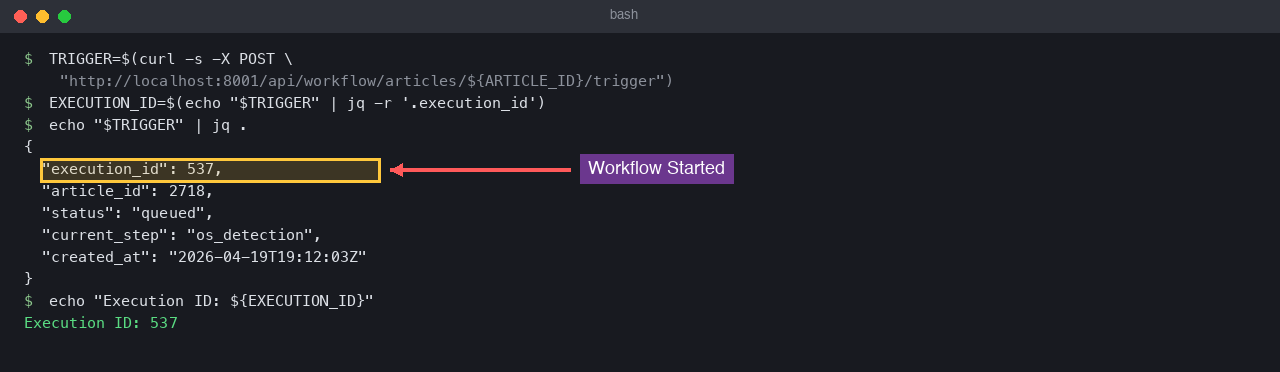 The trigger endpoint returns an
 execution_id and queues the agent pipeline (Platform Detection -> ranking -> extract -> Sigma). Platform badge on the execution record indicates which platform was detected.
5) Monitor and view huntables
Watch execution status and counts:
curl -s "http://localhost:8001/api/workflow/executions?article_id=${ARTICLE_ID}" | jq '.executions[0] | {id,status,extraction_counts}'
status is completed, pull the detailed payload to see extracted observables (huntables):
curl -s "http://localhost:8001/api/workflow/executions/${EXECUTION_ID}" \
  | jq '{status, discrete_huntables:.extraction_result.discrete_huntables_count, observables:.extraction_result.observables}'
http://localhost:8001/articles/${ARTICLE_ID} (the "Reprocess" button mirrors the trigger above and the page surfaces extraction outputs).
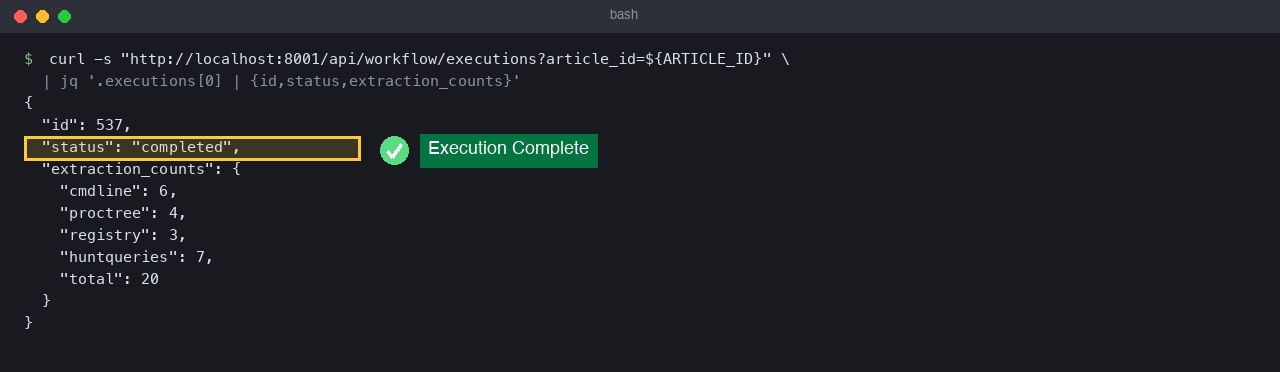 When
When status is completed, the run is done and extraction_counts summarises what each sub-agent produced.
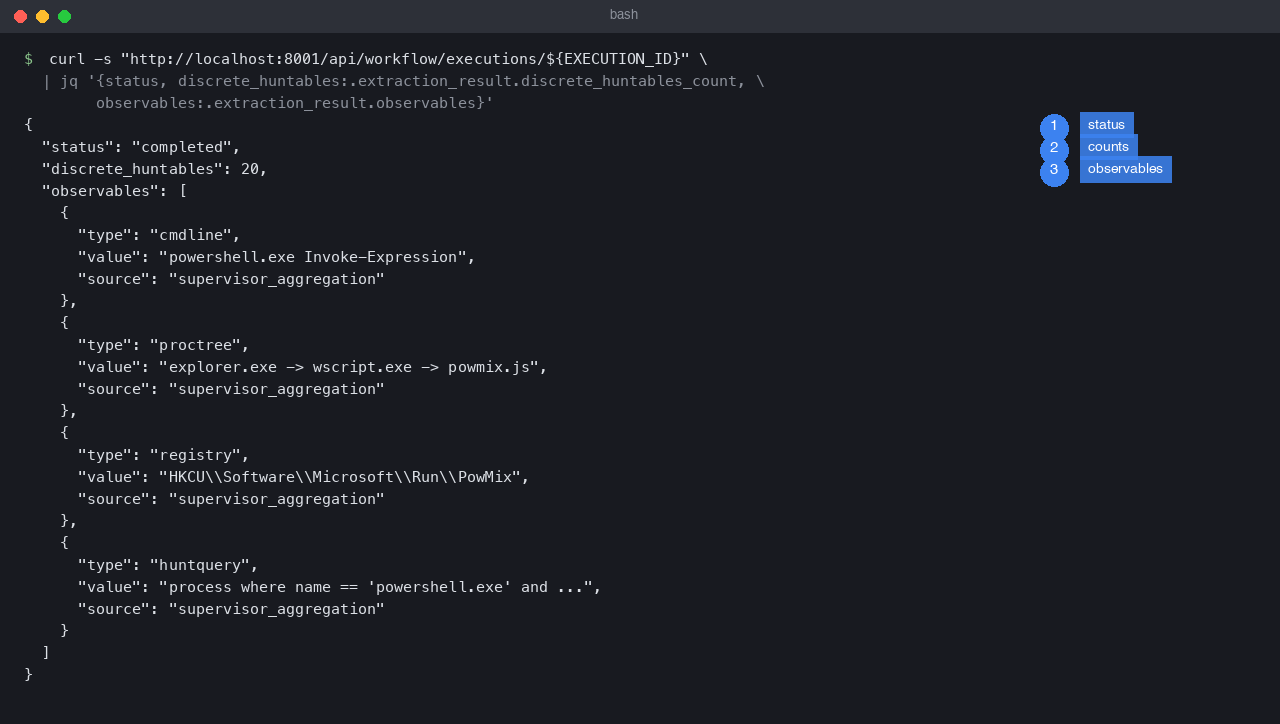 Numbered fields: (1) overall status, (2) discrete huntable count, (3) observable array with type, value, and source agent.
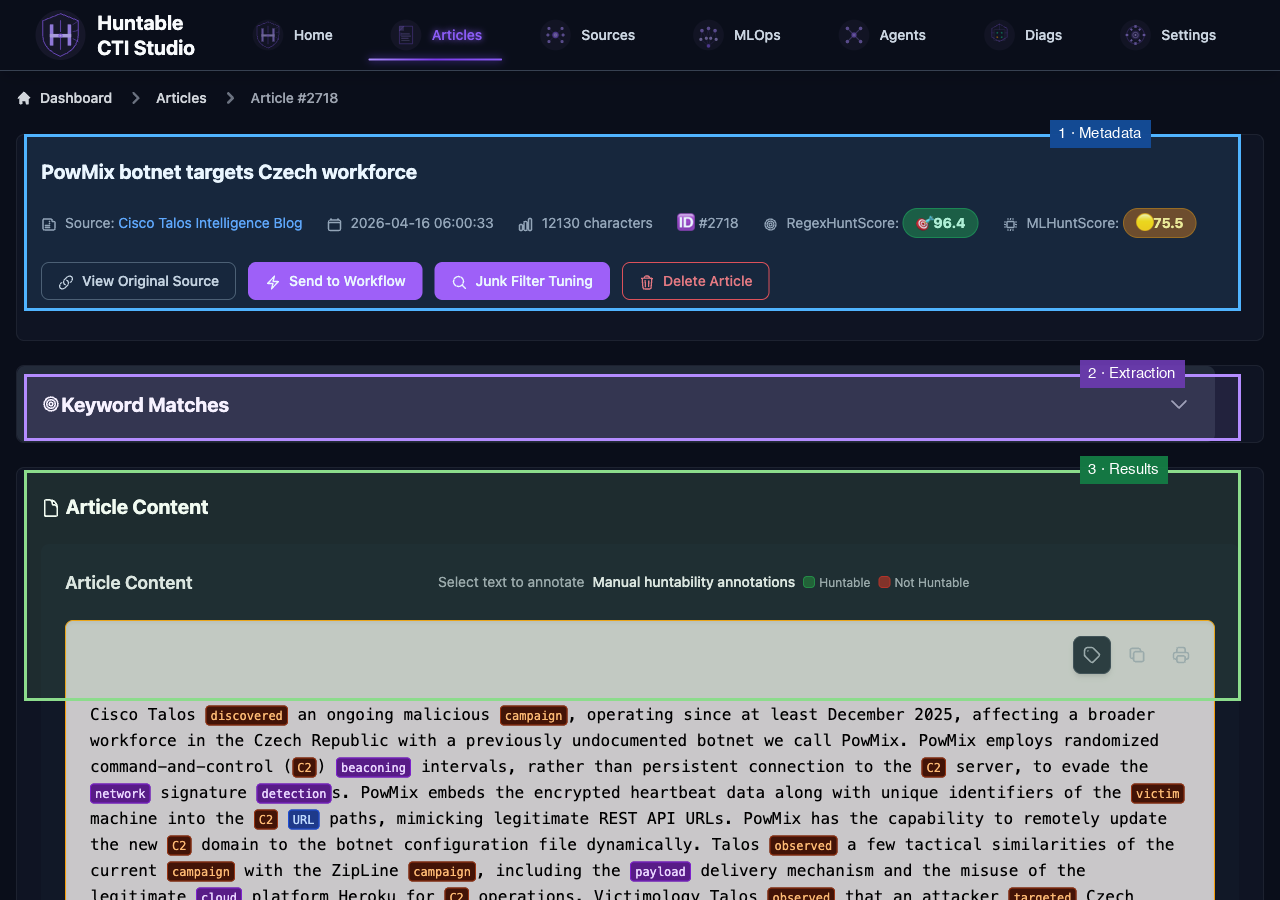 The article page bundles (1) metadata, (2) keyword/extraction matches, and (3) annotated content: the same data the workflow consumed.
6) Review Sigma generation
The workflow writes validated Sigma rules to the same execution record. Inspect them via API or UI:
curl -s "http://localhost:8001/api/workflow/executions/${EXECUTION_ID}" \
  | jq '{status, sigma_rules:.sigma_rules}'
http://localhost:8001/workflow#executions and click View on the row matching ${EXECUTION_ID} to see the validated Sigma YAML, logs, and similarity matches. (The article page at /articles/${ARTICLE_ID} surfaces the extracted observables but not the Sigma rules.)
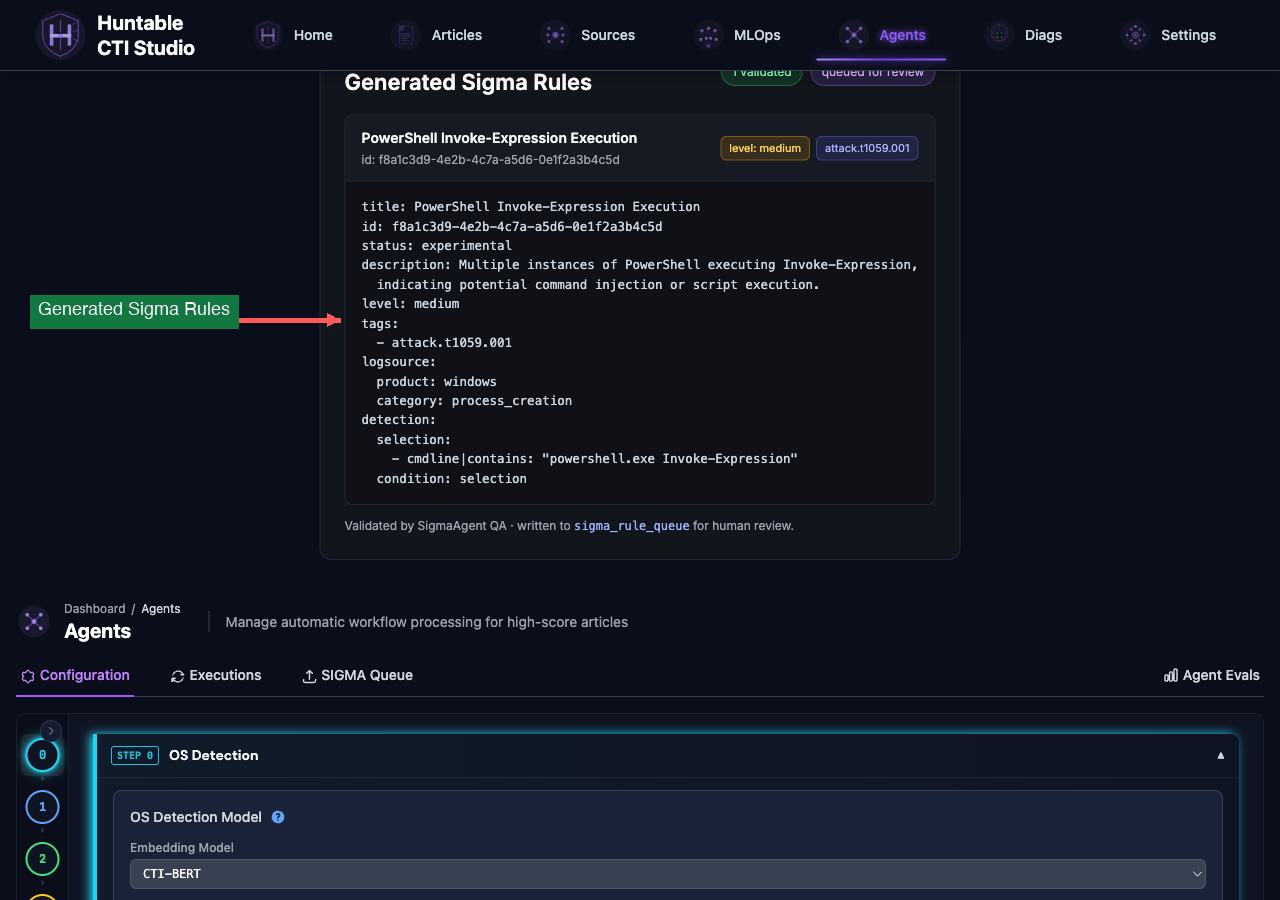 The Workflow page surfaces validated Sigma YAML for the run, plus level and ATT&CK technique tags.
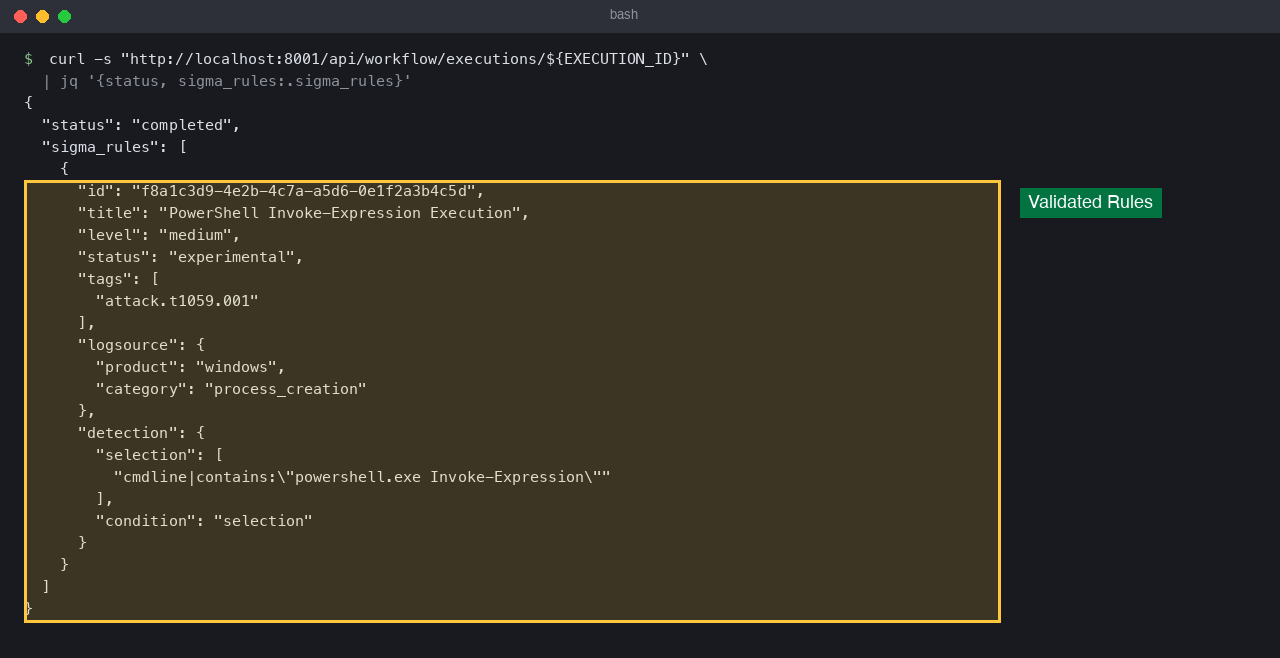 The API returns the same validated rules with full Sigma structure (logsource, detection, condition).
7) Verify with pytest
Run a lightweight API health test from the running web container:
docker compose exec web python3 -m pytest tests/api/test_endpoints.py::TestHealthEndpoints::test_health_endpoints -q
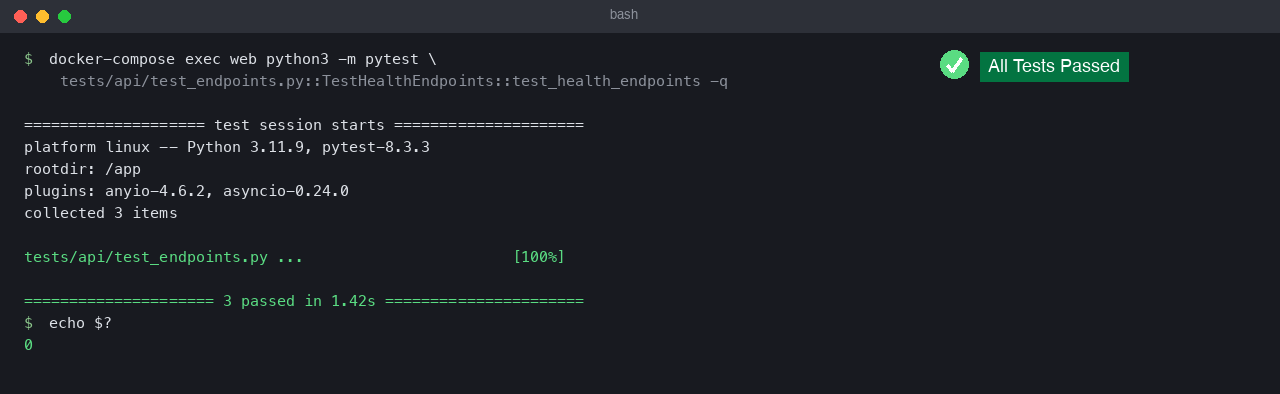 All health-endpoint tests passing (
exit 0) means the API surface and database wiring are operational.
8) MCP server (optional)
For external LLM clients (Claude Desktop, IDE MCP, etc.), the MCP server exposes read tools (article search, full article fetch, Sigma search, sources, workflow executions, the Sigma review queue, read-only SQL) plus scoped, audited write tools; low-risk writes execute directly, and high-risk writes only create pending human-confirmation requests. It uses the same database as the web app. Tool listing, parameters, and write risk tiers: MCP tools reference.
The repo ships a committed .mcp.json registering the server via scripts/run_mcp_server.sh; clients that read project .mcp.json (Claude Code in this repo) need no setup, just approve the huntable-cti-studio server when prompted. For other clients, register bash scripts/run_mcp_server.sh as the command.
The launcher runs the server inside the Docker cli container (so the Linux container's torch / sentence-transformers back the embedding model); semantic search works on every platform, including Intel Mac. Docker must be running. To run it by hand:
Stack shutdown (optional):
Last updated: 2026-07-05 Last reviewed: 2026-09-01